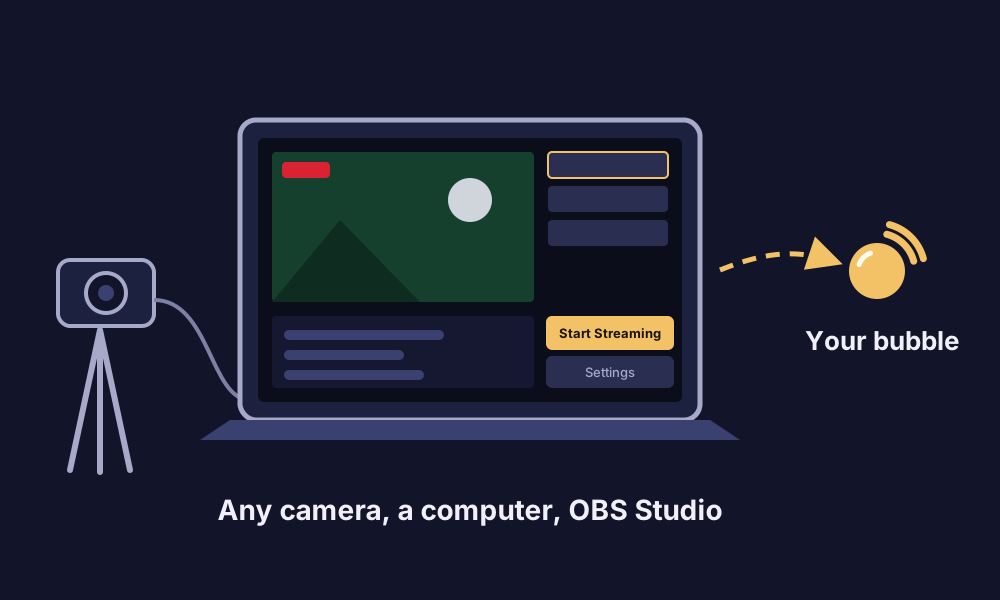
Setting up OBS Studio, step by step
1. In your bubble
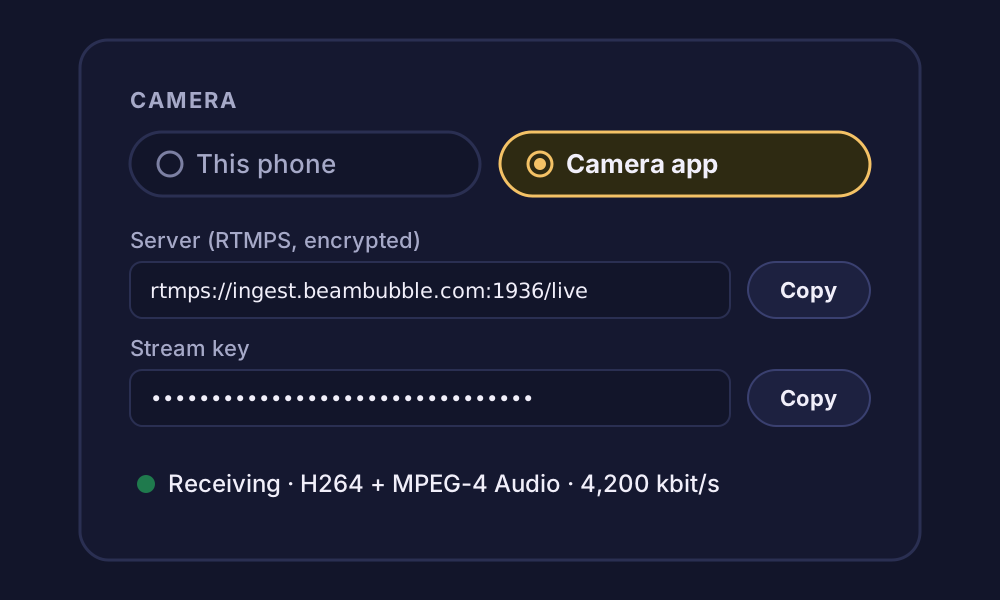
- Under Advanced, on the Camera card, choose Camera app.
- Tap Make a stream key, then copy the RTMPS server and the key.
2. Where OBS sends the stream
In OBS, open Settings → Stream:
| Setting | Value |
|---|---|
| Service | Custom… |
| Server |
rtmps://ingest.beambubble.com:1936/live
|
| Stream Key | The key from your bubble |
Copy the server from your bubble rather than from here, in case it ever changes. If your OBS can't connect over RTMPS, the bubble also shows a plain RTMP server.
3. Output settings
OBS's default settings send B-frames and a keyframe only every few seconds. BeamBubble can take that, but it then re-encodes the video to 720p, and the server re-encodes only one stream at a time. With these settings, the picture goes into the bubble as it is, at full sharpness, and never waits for the re-encoder. Open Settings → Output, set Output Mode to Advanced, and on the Streaming tab:
| Setting | Value |
|---|---|
| Encoder | x264, or your graphics card's H.264 encoder |
| Rate control | CBR |
| Bitrate | 4,000–6,000 kbit/s |
| Keyframe interval | 1 s |
| Profile | baseline |
| B-frames | 0 (if the encoder shows this setting) |
And in Settings → Video:
| Setting | Value |
|---|---|
| Output resolution | 1920×1080 or 1280×720 |
| FPS | 30 |
Sound needs nothing special: OBS's AAC audio is fine.
Why these settings? H.264 with a keyframe every second and no B-frames, at most 1080p and 30 frames a second, can go into the bubble as it is. Anything else is re-encoded to 720p on the server, one stream at a time for the whole server (another waits until it's free), and video above 8 Mbit/s is re-encoded too, so every viewer can keep up.
4. Go live
- Click Start Streaming in OBS.
- Tap Go live in the bubble, on your phone or in a browser on the same computer. The bubble goes live as soon as the video arrives.
- The bubble page shows how the video comes in: as it is, or re-encoded with the setting to change.
- When you're done, tap Stop in the bubble, then Stop Streaming in OBS.
Graphics in two places? You can draw graphics in OBS, or use a BeamBubble overlay such as a scoreboard that you change from your phone. Pick one, so the screen doesn't get crowded.
Using OBS with BeamBubble's extras
- The viewer list. See how many are watching, and who, on the bubble's page while OBS streams.
- Recordings. The bubble records the live with any overlay burnt in, kept 7, 30 or 90 days. About recordings.
- More cameras. In a bubble for people you invite, OBS can be one camera of up to three in a live, next to members' phones. Multi-camera.
- The TV. Viewers send the stream to a TV with AirPlay, Chromecast or mirroring. Watch on TV.