XbotGo guide

XbotGo live stream to a private link, no YouTube needed

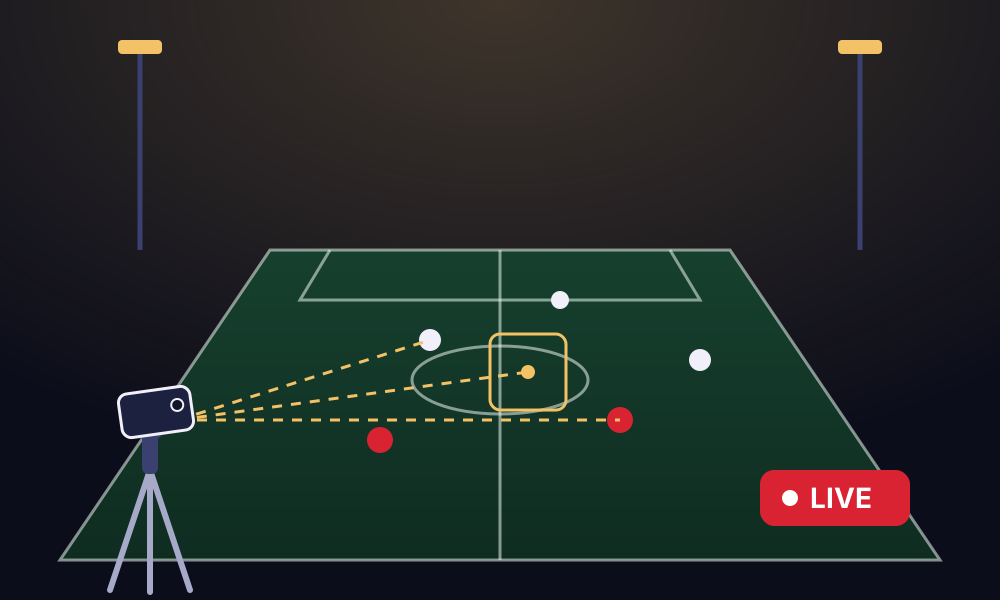
An XbotGo camera, such as the Chameleon, holds your phone and turns it to follow the ball, so nobody has to film. Its app can stream to a custom RTMP server, which means it can stream straight into a bubble on BeamBubble. Family and fans open your link in their browser and watch the match, with the score on screen.

  • No YouTube channel
  • Score on screen
  • Viewers need no app
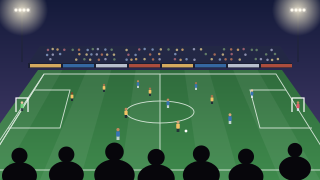
A phone on a tracking gimbal on a tripod at the side of a pitch, following the ball while it streams the match live.
The XbotGo follows the play. The bubble brings it to your people.
Before the match

What you need

Set it up once at training, and on match day it's a few taps. The bubble's link and the stream key stay the same from game to game.

  • An XbotGo gimbal with the XbotGo app on the phone that sits in it, and a tripod.
  • A bubble on BeamBubble. Make one at beambubble.com; it's free.
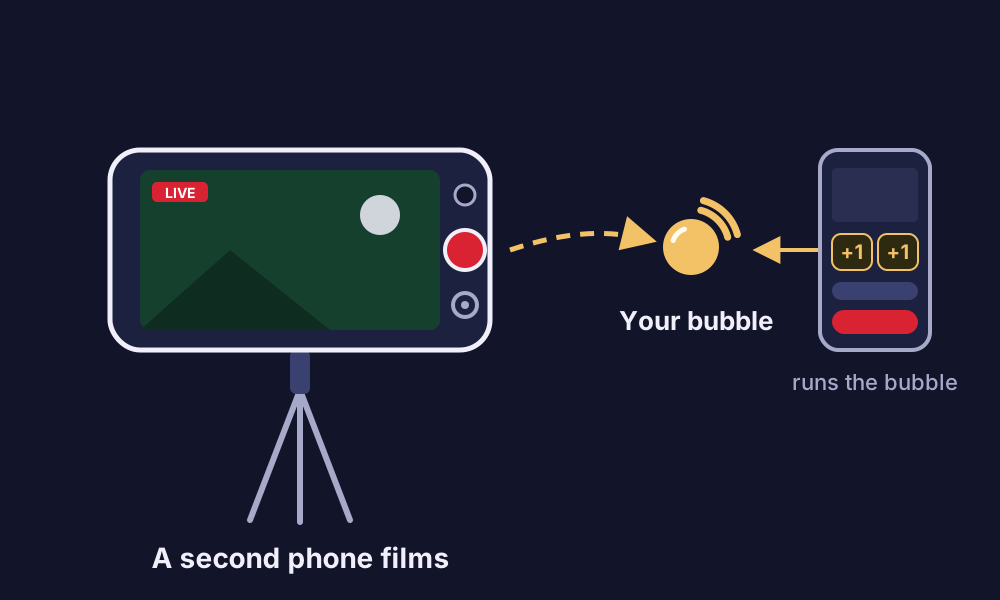
  • Another phone to run the broadcast (go live, the score, chat). The phone in the gimbal is busy filming, and you'll want the score in your hand anyway.
  • A good connection where you film: Wi-Fi, or mobile data with 4–6 Mbit/s up.
  • Power for the filming phone. Streaming a whole match uses a lot of battery.
Overview

Three steps to a private XbotGo stream

  1. In your bubble

    Choose Camera app on the Camera card and make a stream key.

  2. In the XbotGo app

    Choose Third-Party Stream, then RTMP, and paste the server and the key.

  3. Go live and run the match

    Tap Go live in the bubble, share the link, and keep score from your phone.

The setup

How to live stream with an XbotGo, step by step

1. In your bubble

  1. Open the bubble on your own phone. Under Advanced (members: on your camera page), on the Camera card, choose Camera app.
  2. Tap Make a stream key. The card now shows the server and the key, each with a Copy button.
  3. Send both to the phone in the gimbal, or type them in there: use the RTMPS server if the XbotGo app takes it, otherwise the plain RTMP one.
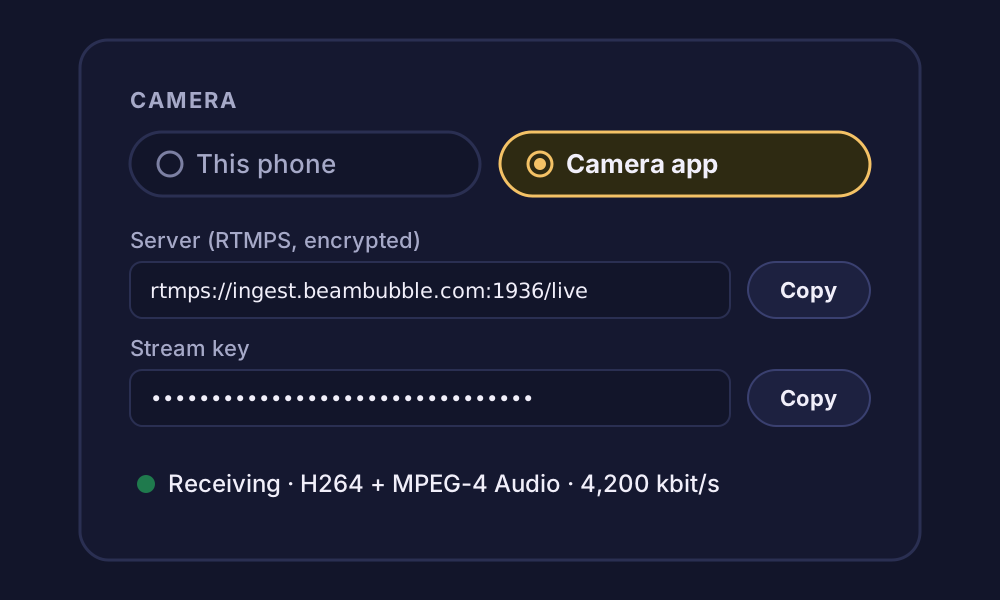
The Camera card under Advanced on a bubble's page, with Camera app chosen, showing the RTMPS server and the stream key with Copy buttons.
The Camera card under Advanced in your bubble. Keep the stream key to yourself.

2. In the XbotGo app

  1. Put the phone in the gimbal and open the XbotGo app.
  2. Start a live stream and choose Third-Party Stream, then RTMP.
  3. Paste the server into the server (or URL) field and the stream key into the key field.
  4. Choose 1080p or 720p at 30 frames a second if the app asks.
  5. Start the stream. Your bubble page says when the video arrives.

The XbotGo app's menus change between versions, so the words may differ a little.

3. Go live and run the match

  1. Tap Go live in the bubble. You can do that before or after the XbotGo app starts: the bubble goes live as soon as the video arrives.
  2. Share the bubble's link, or let your members know (they get a notification or email). Link viewers need no app and no account, just the link (and the PIN, if you set one).
  3. Keep score with the buttons on your phone, read chat and see who's watching. The camera keeps following the play on its own.
  4. At the final whistle, tap Stop in the bubble, then stop the stream in the XbotGo app.

Half-time. Tap Stop for a break: viewers stay in the bubble and see when you're back. Go live again for the second half; the bubble's link and the stream key stay the same. Back within five minutes, and the recording stays one video.

Tips for a good stream

  • Up high, near halfway. Put the tripod up high, near the halfway line: the camera sees more of the pitch and follows better.
  • Keep it charging. Keep the filming phone on a power bank. Streaming a whole match uses a lot of battery.
  • Test at training. A five-minute test live shows you the picture, the signal and the score before it matters.
  • Mind the data. At 4–6 Mbit/s, an hour of streaming uses roughly 2–3 GB of mobile data. How much data live streaming uses.
  • Re-encoded works, but check it at training. If the bubble's page says the video is re-encoded, the stream works as it is, and the page says what to change in the app, if anything. The server re-encodes one stream at a time, though: if another bubble's video is being re-encoded, yours waits, so settings that let it in as it is are the safer choice.

If the XbotGo live stream isn't working

  • The bubble keeps waiting for the video. Check that you copied the whole stream key and the right server. A new stream key stops the old one at once, so paste the newest.
  • It won't connect over RTMPS. Some networks block port 1936. Use the plain RTMP server from the bubble instead.
  • The signal drops. Viewers see "Reconnecting", and the match goes on if it's back within 90 seconds. Move closer to the Wi-Fi, or choose 720p in the app.
  • The picture is softer than expected. The bubble page names the setting to change. Video that goes in as it is keeps its full sharpness in the recording; re-encoded video is 720p. Viewers watch a 720p stream either way.
FAQ

XbotGo streaming questions

How do you live stream with an XbotGo Chameleon?

Make a stream key on your bubble's Camera card, then choose Third-Party Stream and RTMP in the XbotGo app and paste the server and key. Start the stream, tap Go live in the bubble, and share the bubble's link.

Can XbotGo stream to RTMP?

Yes. The XbotGo app can stream to a custom RTMP server with Third-Party Stream. That's all BeamBubble needs: the server address and the stream key from your bubble.

Which XbotGo cameras work?

Any that can stream to a custom RTMP server from the XbotGo app ("Third-Party Stream"). BeamBubble only needs the server address and the stream key.

Can I still stream to YouTube?

BeamBubble doesn't pass your stream on to YouTube; to stream there, point the XbotGo app at YouTube instead. BeamBubble is for a private audience: only people with your link (and PIN), or the members you invite, can watch, and nothing is public.

Does the score show on the video?

Yes. Pick a scoreboard overlay for the bubble, and the score you keep on your phone is drawn over the XbotGo's video for every viewer. It's in the recording too. About the live scoreboard.

Can the XbotGo be one of several cameras?

Yes, in a bubble for people you invite: a live can have up to three cameras, each a member's phone or camera app. The XbotGo can film the whole pitch while a parent's phone behind the goal adds a second angle, and viewers switch between them. How multi-camera works.

Free to use today

Your people are waiting for the link.

Make a bubble in a minute, send the link, and go live from the phone in your pocket. Viewers watch in their browser, no app needed.