Live streaming a school event, step by step
School events bring two things sports games don't: rules about filming other people's children, and music. Get those right first, and the filming itself is straightforward.
1. Ask the school first
Schools have rules about filming pupils, and many collect photo and video consent from parents. Ask before you plan anything: whether streaming is allowed, who may do it, and whether any children must not be filmed. If some mustn't, film wide from the back and skip close-ups, or ask the school how it handles it. Some schools stream events themselves; a private stream for one class can sit alongside that.
2. Choose who can watch
For a class, make a bubble with "People I invite" and add the parents by email: they sign in once with a code, and see the bubble every time after. For your own family, "Anyone with the link" with a 4-digit PIN is quicker; send the PIN in a separate message.
Be realistic about numbers. Up to 25 people can watch a live at the same time, and a bubble can have up to 200 members. That suits a class or a family better than a whole school's audience; members who can't watch live can watch the recording afterwards.
3. Get a good seat and a steady shot
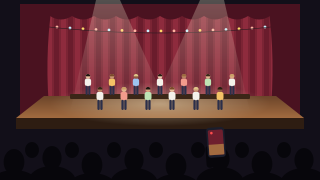
The best spots are the middle of the hall a few rows back, a balcony, or the side of the hall near the front. Arrive early. Use a small tripod on your lap or a monopod that doesn't block the people behind you, turn the phone sideways and zoom until the whole stage fits. Filming over other people's heads only works from a balcony or a raised seat. Keep BeamBubble open on the screen while you're live: locking the phone pauses the stream.
4. Low light and sound
A dark hall and a bright stage are hard for any camera. Frame the stage, not the dark audience, so the phone sets its exposure on the performers, and keep spotlights out of the shot. For sound, get close: a seat near the front, a small microphone near the stage, or a cable from the school's sound desk into the phone gives the clearest result.
A full hall can also strain the mobile network, with hundreds of phones sharing the same mast. If the school has Wi-Fi you may use, ask for the details before the day, and do a short test live from your seat. At 720p the phone needs about 4 Mbit/s of upload and uses about 1.5 GB an hour.
5. Add a second and third angle
In a bubble for people you invite, up to three members can film the same live, one phone each: a wide shot from the back, a closer one from the side of the stage, and one on the soloists, the piano or the graduation steps. (In a link bubble, the owner's phone is the one camera.) Viewers switch between the angles themselves. Each camera's video is kept too, and the video page can switch camera at the same moment, so a family can rewatch the close-up of their child's solo. How multi-camera works.
6. Long ceremonies and intervals
A live runs for up to three hours, with a warning ten minutes before the end; go live again at once on the same link. That covers most concerts and plays, and long graduations with hundreds of names can continue in a second live. At a play's interval, stop and go live again: back within five minutes and it stays one video, otherwise each half is its own video.
7. A note on music
School concerts, recitals and plays often use music that is under copyright. BeamBubble doesn't mute streams automatically the way some public platforms do. That doesn't change the music rules where you are: the school or dance school may have licences that cover streaming, or may not. Check with them, and with the performers, before you stream.
8. Afterwards
Recording is on in new bubbles, and viewers see "REC" while it runs. After you stop, the video is prepared (it takes a little longer than the live lasted), then shows in the bubble with who filmed it, and stays for 7, 30 or 90 days. Members watch it there; people who watched with the link see the live only. The bubble's owner can download the MP4 and can let members download it too. About recordings.