Larix Broadcaster guide

Larix Broadcaster tutorial: add a second phone as your camera

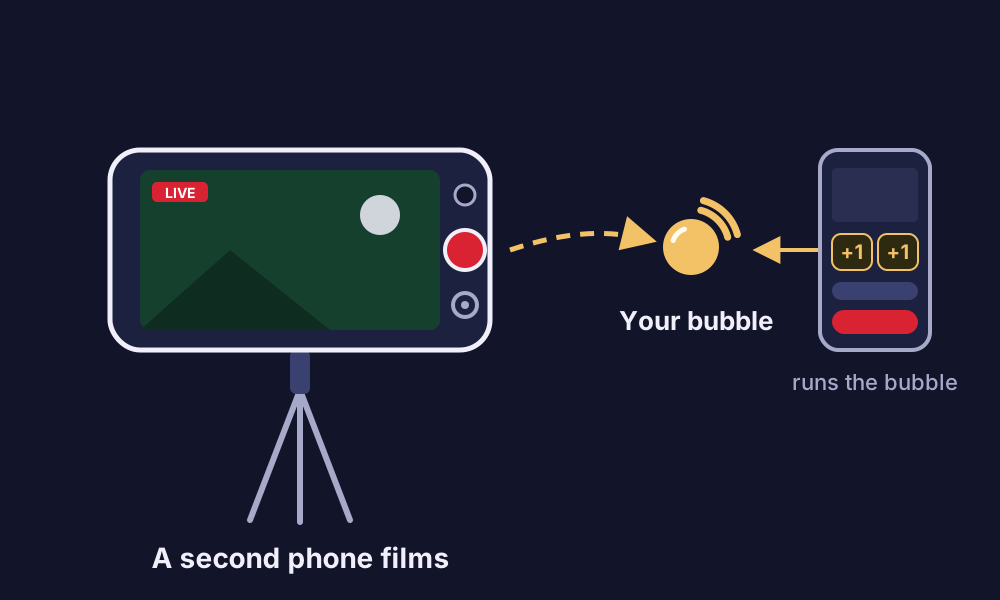
Larix Broadcaster is a streaming app for iPhone and Android. Put it on a second phone and that phone becomes the bubble's camera, on a tripod, a fence or a balcony. Your own phone stays free to run the bubble: the score, chat and who's watching.

  • iPhone and Android
  • 1080p or 720p
  • RTMPS, encrypted
A phone on a small tripod streams with Larix to BeamBubble, while another phone runs the broadcast with score buttons.
One phone films with Larix. Yours runs the score, chat and Stop.
When to use it

Why a second phone with Larix?

Going live from your own phone is the simplest way, and for many events it's all you need. A second phone with Larix is for when the camera should stay put while you move around, keep score or talk to people.

  • Larix Broadcaster on the filming phone, from the App Store or Google Play.
  • A tripod or clamp, so the picture stays still.
  • A charger or power bank for the filming phone.
  • Your own phone with your bubble open, to run the broadcast.
  • A connection on the filming phone with 4–6 Mbit/s up, or less at 720p.
Overview

How to use Larix Broadcaster with BeamBubble

  1. Make a stream key

    In your bubble, choose Camera app on the Camera card and send the server and key to the filming phone.

  2. Add a connection in Larix

    One line: the server, a slash and the key. Then set the video for 1080p or 720p.

  3. Go live

    Tap the red button in Larix and Go live in the bubble on your own phone.

The setup

Setting up Larix, step by step

1. In your bubble

  1. On your own phone, open the bubble. Under Advanced (members: on your camera page), on the Camera card, choose Camera app.
  2. Tap Make a stream key, and send the server and the key to the filming phone.
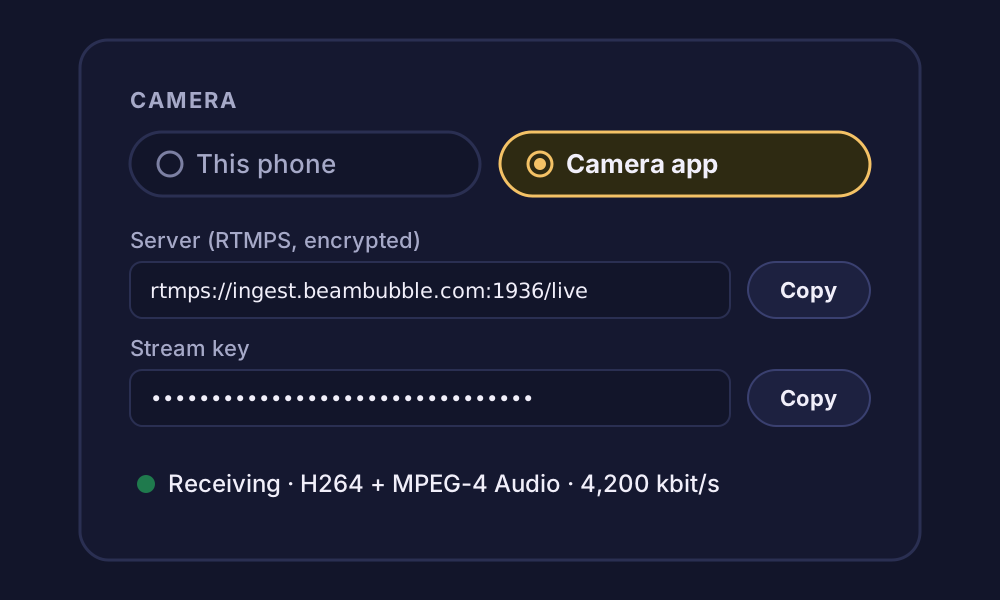
The Camera card under Advanced on a bubble's page, with Camera app chosen, showing the RTMPS server and the stream key with Copy buttons.

2. A connection in Larix

On the filming phone, in Larix: Settings → Connections → New connection.

Setting Value
Name BeamBubble
URL The server, a slash, and the key in one line
Mode Audio + Video

The URL looks like this, with your bubble's key at the end:

rtmps://ingest.beambubble.com:1936/live/yourstreamkey

Then make sure that connection is switched on, and the others are off.

3. Video settings

In Settings → Video:

Setting Value
Resolution 1920×1080 or 1280×720
Frame rate 30 fps
Keyframe frequency 1 second
Format H.264 (AVC), Baseline profile
Bitrate 4–6 Mbit/s

With these, the video goes into the bubble as it is. Other settings work too; the server then re-encodes to 720p, and the bubble's page tells you why. The server re-encodes one stream at a time, so if another bubble's video is being re-encoded, yours waits until it's free.

4. Go live

  1. Turn the filming phone sideways and tap the red button in Larix.
  2. Tap Go live in the bubble on your own phone. The bubble goes live when the video arrives.
  3. When you're done, tap Stop in the bubble, then stop Larix.

Weak signal where you film? Choose 1280×720 and a lower bitrate, around 3 Mbit/s, which still goes in as it is. If the signal drops, viewers see "Reconnecting", and the live goes on if Larix is back within 90 seconds.

Tips

  • Charge and dim. Keep the filming phone on a charger, with its screen dimmed: streaming takes a lot of battery.
  • Do Not Disturb. Turn it on for the filming phone, so a call doesn't stop the stream.
  • Hold still. A phone held still on a tripod looks far better than one held by hand.
  • Sound close to the action. The filming phone's microphone picks up what's near it, so put it where the sound matters.
  • Watch the data. At 4–6 Mbit/s, an hour uses roughly 2–3 GB. Data use explained.

Where to put the Larix phone

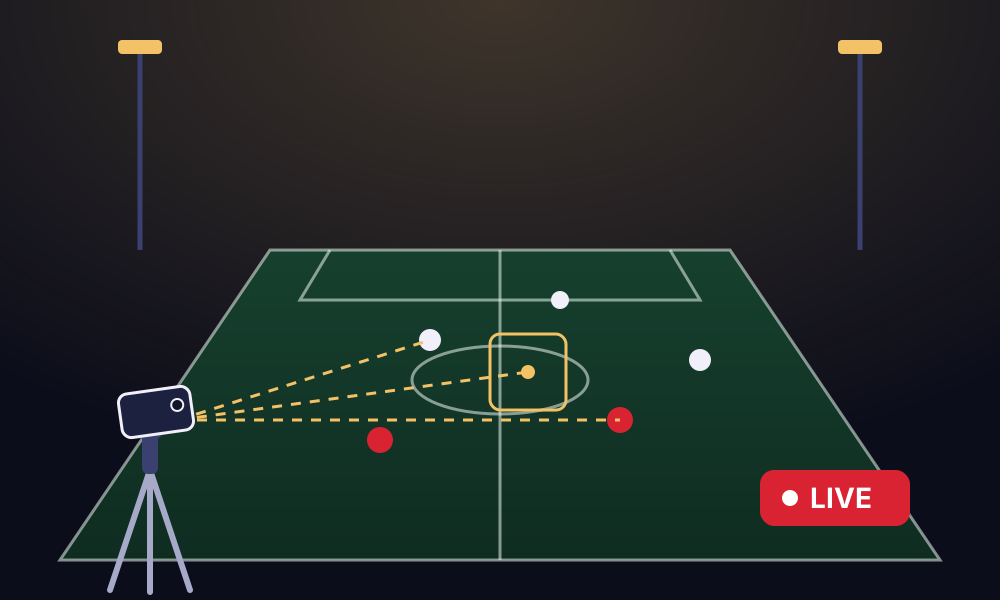
  • At a game: high on a fence or a tripod near halfway, where it sees the whole pitch or court. Streaming youth sports.
  • At a concert or play: on a balcony or at the back of the hall, clear of heads, with the stage filling the frame.
  • At a ceremony: at the end of the aisle or by the back wall, close enough that the microphone hears the speaker.

Turn the filming phone sideways before you start: a sideways picture fills a TV.

Larix as an extra angle

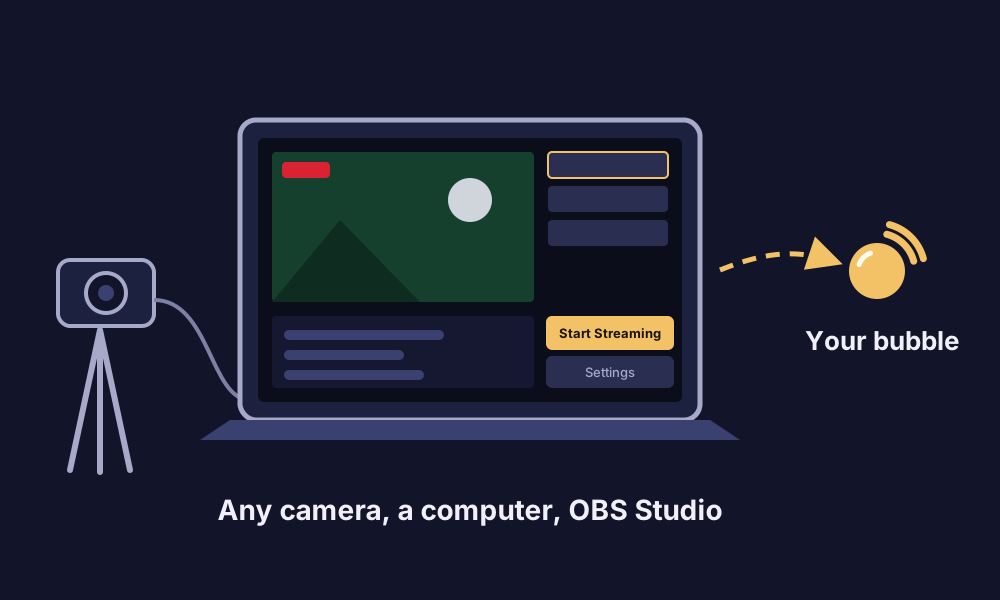
Each person who can go live in a bubble has their own camera, and each camera can be a phone or a camera app. So in a bubble for people you invite, Larix can be your camera on a tripod at the back of the hall while a friend who's a member films a close-up with their phone. Viewers switch between up to three cameras. (In a bubble for anyone with the link, only the owner films.) How multi-camera works.
FAQ

Larix Broadcaster questions

Why not just go live from my own phone?

You can, and that's the simplest way. A second phone with Larix is for when you want the camera to stay put while you move around, keep score or talk to people.

Larix says it can't connect. What should I check?

Check that the URL ends with a slash and the whole stream key, and that you made the key in the bubble. A new stream key stops the old one at once. If port 1936 is blocked where you are, use the plain RTMP server from the bubble instead.

What is the right Larix Broadcaster RTMP URL for BeamBubble?

The bubble's server and stream key in one line, joined by a slash, such as rtmps://ingest.beambubble.com:1936/live/ followed by your key. Copy the server from your bubble's Camera card, in case it changes.

Does Larix Broadcaster work on iPhone and Android?

Yes, Larix Broadcaster is available for both. Its price and plans are set by its maker, so check its App Store or Google Play page.

Can Larix and my own phone both be cameras?

Not for the same person: each person has one camera in a live. In a bubble for people you invite, Larix can be your camera while another member films with their phone, up to three cameras in all.

Is the Larix stream recorded?

Yes, when the bubble records. The video, with any scoreboard burnt in, is kept 7, 30 or 90 days. About recordings.

Free to use today

Your people are waiting for the link.

Make a bubble in a minute, send the link, and go live from the phone in your pocket. Viewers watch in their browser, no app needed.